Run Kali Linux GUI Apps on WSL2
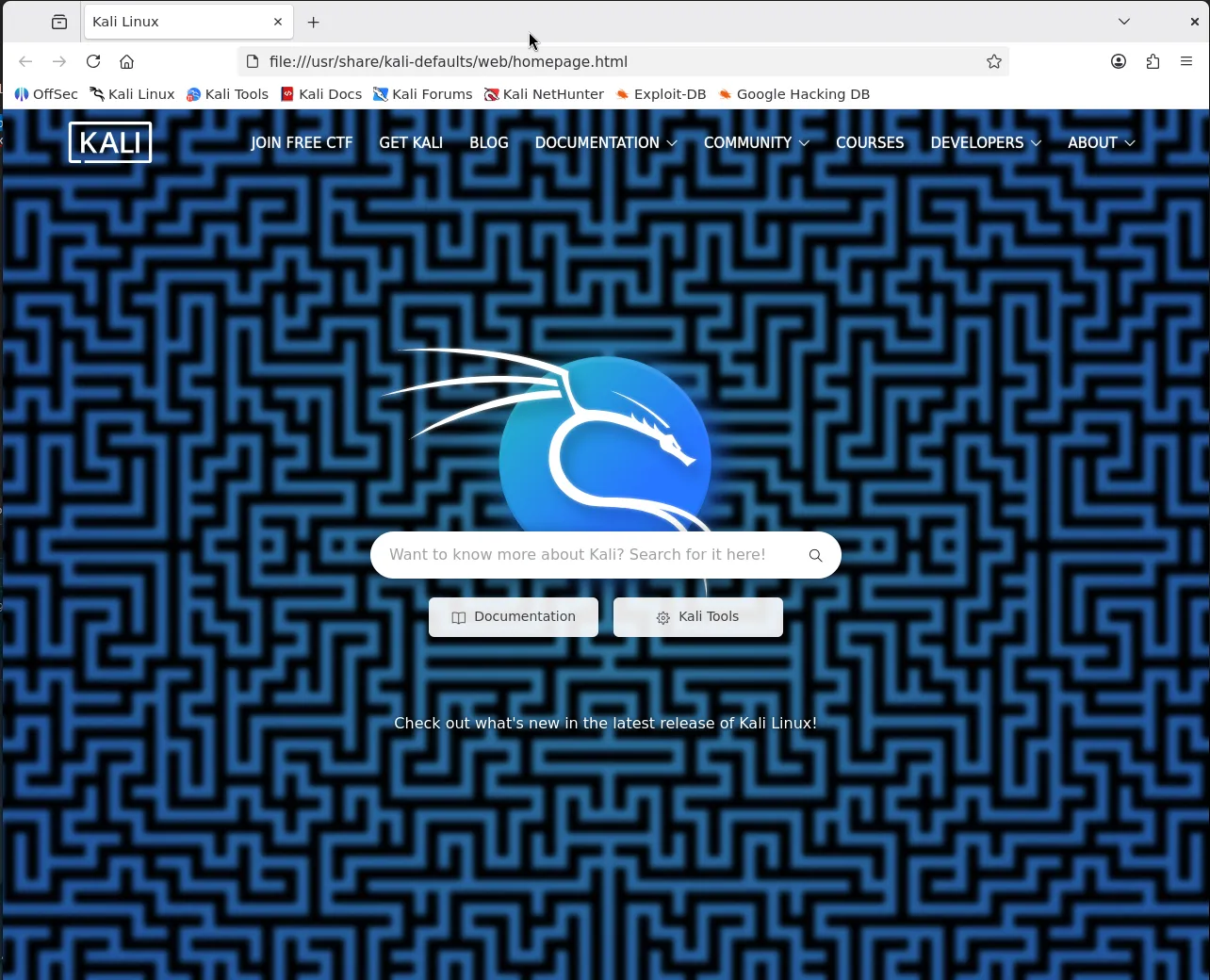
Windows Subsystem for Linux 2 (WSL2) on Windows 11 makes it possible to run Linux distributions with full GUI support, thanks to WSLg. In this article, I’ll walk through the steps I used to install Kali Linux on WSL2 and set up a graphical environment that allows GUI applications like xeyes and Firefox to run seamlessly.
Step 1: Install Kali Linux on WSL
First, open Terminal (PowerShell or Windows Terminal) as an administrator and run the following command:
wsl --install -d kali-linux
This command installs Kali Linux as a WSL2 distribution. Once the installation is complete, launch Kali Linux from the Start Menu and complete the initial setup (username and password).
Step 2: Check the GUI Environment (WSLg)
To confirm that GUI applications can be displayed via WSLg, check the following environment variables inside Kali Linux:
echo $WAYLAND_DISPLAY
echo $DISPLAY
If you see output similar to the following:
wayland-0
:0
then one or both variables are set, which means there is a high chance that GUI applications will work via WSLg.
Step 3: Update Package Lists
Before installing additional software, update the package lists:
sudo apt update
Step 4: Install X11 Test Applications
Next, install some basic X11 applications to test GUI functionality:
sudo apt install -y x11-apps
After installation, run a simple GUI test:
xeyes
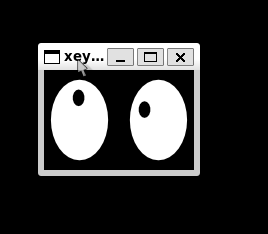
If a small window with animated eyes appears, your GUI environment is working correctly 🎉
Step 5: Install Firefox (GUI Application)
Now, let’s install a real GUI application—Firefox ESR:
sudo apt install -y firefox-esr
Once installed, launch Firefox with:
firefox-esr
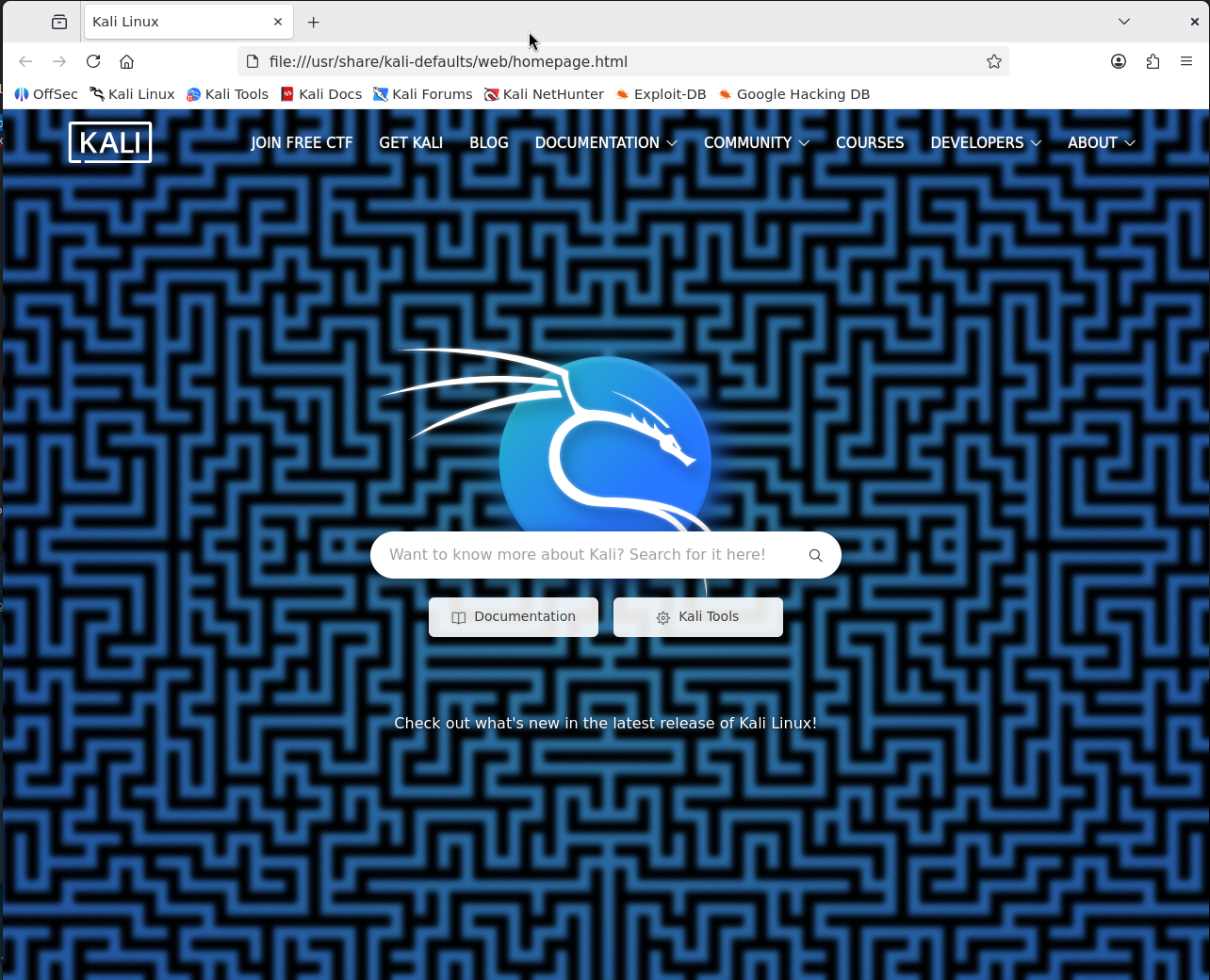
Firefox should open in its own window on your Windows desktop, running directly from Kali Linux inside WSL2.
Conclusion
With Windows 11 and WSL2, running Kali Linux GUI applications has become extremely straightforward. Thanks to WSLg, there’s no need to configure an external X server—GUI apps work out of the box.
This setup is especially useful for:
- Security testing tools in Kali Linux
- Linux GUI application development
- Learning and experimenting with Linux on Windows
If you haven’t tried WSLg yet, Windows 11 makes it an excellent time to do so.
Happy hacking! 🚀